Up next in 10


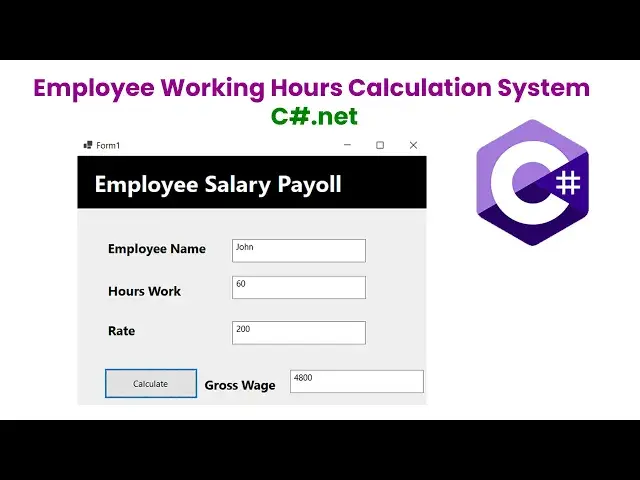
Employee Working Hours Calculation System using C#.net
Show More Show Less View Video Transcript
0:00
hi friends welcome to duor funny Channel
0:03
today I'm going to teach how to make the
0:05
employee salary calculation system using
0:09
based on this condition so here you can
0:11
see employee number how work how rate
0:15
and calculate the gross rate using
0:17
following
0:18
condition what is the condition if the
0:20
employee work more than 40 hours then he
0:24
will be paid the hour work over 40 hours
0:28
at the rate of two times than the normal
0:30
rate others get normal P okay this is
0:33
the very essential program while you
0:36
working with work as a software
0:38
industrial the most of the payroll
0:40
system you have to hand this kind of a
0:43
scenario so how to do the system in my
0:46
net we have to do step by step so I
0:49
already opened the VIS Studio to create
0:51
a new
0:54
project here you have to click on this
0:58
uh fisha Windows you can select the
1:01
language cop Windows application
1:06
desktop select as
1:10
desktop here select this here also there
1:13
are various applications there now I'm
1:15
going to select windows for application
1:18
over here click next you write here my
1:24
app I'm going to this one as
1:32
click
1:33
next
1:36
create you got wait until the project
1:38
get
1:40
created don't wait until the project get
1:42
created it's creating okay now it's
1:45
creating sucess you will be able to see
1:46
the
1:48
screen I'm going to close this one this
1:51
is the for you double click on this one
1:53
and open it now let's design the form so
1:57
here we have to adjust the form size
1:59
which for want so you have to drag one
2:03
uh first you have to drag one panel so
2:06
get panel right panel you have to drag
2:09
it on panel you have to do the panel and
2:11
do it that is a very essential
2:17
stuff here we have to name it as this
2:20
one I'm going to right click properties
2:22
I'm going to make the color which is
2:24
a uh background color I'm going to make
2:28
the background color
2:30
should be I'm going to make it
2:32
as
2:34
black after that I'm going to make
2:37
the uh
2:41
label this label I'm going to name it
2:45
as employee
2:49
salary
2:51
salary keally and I want to increase the
2:54
font size little bit bigger
3:02
I want to little bit bigger so that's
3:05
that would be
3:08
enough for this one click on this I'm
3:11
going to change the background which is
3:14
uh
3:16
White this color so if you want to only
3:19
I want background color no I want to
3:22
change this this one I want foreground
3:24
color I want to change the foreground
3:26
color only
3:31
first employee salary calculation you
3:34
can put it the employee salary
3:35
calculation employee
3:37
salary uh
3:44
P now I want to drag two
3:49
labels two one label I'm going to select
3:52
this one this label I'm going to name it
3:55
as uh first label I'm going to name it
3:58
as employee name
4:01
hourly work rate employe name
4:34
wait
5:00
let's click on this you have to adjust
5:01
the size which you need so let's go
5:04
click on this so you have right click
5:07
properties uh we have to go to
5:10
here txt
5:15
name c to copy V to paste below this one
5:18
you have
5:19
to name this one as a txt h h
5:25
work this one copy and paste it below
5:28
this one you have to make it as H
5:38
shap after that what I'm going to do is
5:40
I want to uh make a one button which is
5:44
a calculate
5:47
butt I want to I need a one button which
5:49
is a calculate button
6:09
now what I'm going to select here the
6:11
calculate button here I'm going to get
6:14
the gross so this same label and text
6:18
box you just copy and paste
6:21
it over here here this one I'm going to
6:24
make as cross page
6:35
this one I'm going to uh I'm going to
6:37
name it
6:38
as uh sorry this
6:43
is
6:47
txt
6:49
dxt g v
6:59
here you have to go to the calculate
7:01
button so I have name it all things
7:03
correctly now we have go to the base on
7:06
the condition if the employ more than uh
7:12
40 those who work more than 40 hours per
7:15
week we provide two times as a normal P
7:19
so how to calculate this okay very
7:21
simple stuff we have to handling this
7:23
one first we have to first what you
7:25
going to do is we have to this are the
7:27
text field text boxes I'm going to the
7:29
variable so this variable I'm going to
7:31
make a double
7:34
type write
7:37
Double H
7:40
workk H
7:42
rate
7:48
GH so here we have write it
7:51
here H workk
7:55
equal in do pass
8:02
so here we have write the text box name
8:04
which is
8:05
a txt sorry txt H
8:09
work sorry it's not integer it's a
8:12
double do pass double
8:18
dot uh
8:23
double do
8:25
pass write it over here this one should
8:28
be
8:31
dxt
8:32
hk.
8:36
text
8:37
okay
8:41
okay okay so seconds I copy and paste it
8:45
below this one should be H
8:48
rate what the H hourly work you are
8:51
given and
8:53
rate it is assign to this variable this
8:56
variable after that we have to get
8:58
calculate the gross s I'm going to
9:01
calculate the gross s so using the
9:03
following condition so
9:06
if this work
9:08
cover more than
9:11
40 what happen is I'm going to provide
9:14
the cross conditions
9:16
Bross
9:19
equal you write like this H
9:26
workk minus 40
9:31
into 2
9:35
2 H
9:46
sh What side sh
9:53
mean the employee who works more than 40
9:57
hours so they work a uh you put it here
10:02
so you have to uh this is the 40 hours
10:05
okay so 40 hours you have to what is
10:07
more than work 40 hours you have to here
10:09
we have to we have to minus it and what
10:13
happen is here into two times you have
10:15
to pay two times after that what you're
10:17
going to do this here you have write the
10:19
plus this also the OT payment normal
10:23
payment I'm going to give here as a
10:26
40 into
10:30
you what is theate you given the company
10:33
given that's the
10:35
thing that's the thing we like what's a
10:43
problem sorry this
10:46
is how the
10:52
Tails after that you have gross page
10:56
equal 40
11:00
into dat
11:03
shet that's it that's the thing you have
11:06
wred how that you have to print print it
11:08
on the text
11:10
field printing on the text field so what
11:13
you going to do this here
11:15
txt txt
11:19
gb.
11:21
text
11:22
equal this GH do two
11:30
you to convert that get the salary uh
11:34
calculate and convert as a two so let's
11:37
run the program and check what would be
11:39
the output as it it
11:53
is now you can see the output uh
11:56
employee name I'm going to get John
12:00
hourly work I'm going to give there
12:01
hourly work uh hourly work I'm going to
12:04
give as a
12:06
50 so rate
12:09
40 rate I'm going to give the power I'm
12:11
going to give the rate uh I'm going to
12:15
give uh a rate you can give as a 20 so a
12:21
rate for 20 20 so you can see that
12:25
Crossway is
12:27
3,000 the three
12:29
three uh three
12:33
3,000 okay the rate given as a 200 per
12:37
hour okay those who are not working
12:40
those who are working 40 hours then it
12:43
will get this
12:45
one okay so this how we make the program
12:48
simple program the employ salary
12:50
calculation those this a calculation the
12:52
a must be uh how many uh times work more
12:57
than
12:57
40 uh 40 hours that that time we have to
13:03
uh minus it minus it as a usual time
13:07
after that you have to pay two
13:09
times after that here is normal payment
13:12
it will be calculated 40 into
13:17
our okay that's how we have make the
13:20
program
13:25
simple okay I hope you guys you
13:28
understood the things well
13:29
uh if you have any doubt you can ask me
13:32
if you love my Channel Please Subscribe
13:33
me like me thank you for watching
#Business & Industrial
#Programming
#Jobs & Education
#Windows & .NET