Up next in 10


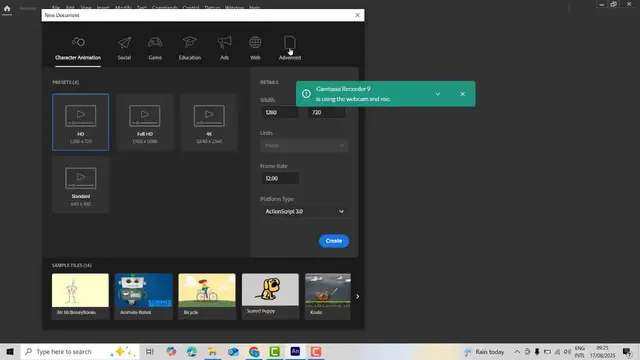
✨ Do you want to create stunning animations in just 10 minutes? This Adobe Animate tutorial will show you exactly how to use Adobe Animate step by step, even if you’re a complete beginner.
In this video, you’ll learn:
🎯 How to animate in Adobe Animate quickly and easily
🎯 How to use classic tween in Animate CC for smooth movements
🎯 Simple tips to make your first Adobe Animate animation look professional
This is the fastest way to get started with animation and bring your creative ideas to life!
👍 If this video helps you, make sure to like, comment, and subscribe for more easy tutorials.
#AdobeAnimateTutorial #HowToGetStartedAnimating #AdobeAnimateForBeginners #2danimationtutorial #animationmadeeasy
Show More Show Less View Video Transcript
0:00
Hi friends, welcome to our channel.
0:02
Today I'm going to bring the tutorial of
0:05
Adob animate. So if you want to make the
0:07
animation, if you want to make the if
0:10
you want to be animator, so that is your
0:14
goal, it is simple. You have to install
0:16
your machine in adop animate, right? So
0:20
let's go to the file after that new.
0:26
Click on it. See here there is various
0:29
options are there at the moment I'm
0:31
going to click character animation
0:33
select select as it is as adop uh uh
0:38
action script tree this new one frame
0:40
rate if it is if you uh put it here 24
0:44
you have to make it as 12 it is smoothly
0:47
we have to work on the animation frames
0:50
frame size we have to keep as it is as a
0:53
default one right so the first time uh
0:56
here this one What is the thing is here
0:58
you have to make the video of uh video
1:00
animation. So if it is HD you have to
1:03
select as here HD. Let's select as HD
1:05
format. Okay. So you have to select as
1:08
4K. There are various choices are there.
1:11
You can select one of these according to
1:14
the client's requirements. Right? So
1:18
click on it.
1:23
Right. Okay. So that's okay. So let's
1:28
zoom out here that click on it.
1:32
Uh I'm going to click on it here. Uh
1:36
frame size 50. Okay. 50 screen. So you
1:40
hold on your control key down and you
1:43
you have to scroll your mouse wheel. So
1:45
you have to simply you have to zoom in
1:47
zoom out. You can simply have to
1:52
uh arrange your screen size what you
1:54
need according to the screen side you
1:55
can make the animation. Simply you can
1:58
see after I open the animate you can see
2:01
there's a called assets click on assets
2:05
right if the asset is not there it's not
2:08
there go to the windows menu windows
2:10
option assets the assets you can see
2:13
where this is the character animations
2:16
this animation is already given by adop
2:19
animate okay so this already the
2:21
animation is working on it so you have
2:23
you no need to if you want to make the
2:25
cartoon or something animations for your
2:28
school or anything else. You have to you
2:31
have to like this way. Right? So you
2:34
have to make it this one. Click on it
2:36
and drag and drop it.
2:39
Right? So that character will be
2:42
imported here. Right? So if it is if you
2:44
play that role here, it is working right
2:48
here. This bike is working here.
2:52
Press enter key on your keyboard here.
2:53
The bike is working right. So you have
2:55
to now the bike is working. Now I want
2:58
to moving to where
3:00
I want to move move this bike into
3:04
this point to I'm going to this here
3:07
it's coming here. I'm kind of moving to
3:09
here. So select the frame. This is a
3:12
frame here.
3:13
I want to increase the frame size here.
3:16
70. Right click.
3:18
Insert key frame. Right. What is the
3:20
meaning of insert key frame? This is the
3:22
key frame starting. This is the key
3:23
frame. You have to this K frame starting
3:26
from number one end from 70. Select end
3:31
uh end 70. I want to move move this
3:34
character into hold the shift key down
3:36
and move the move the character into
3:38
over here. So the the animation is
3:41
starting over here. Stop over here.
3:45
Right. Okay. So in between one frame to
3:48
70 frame frame what you're going to do
3:51
is right click on it. Select the select
3:54
as create classic traffic. Now you can
3:57
play the animation control + enter on
4:00
your keyboard. It is it is not smoothly.
4:04
It is very fast. Yeah. It's very fast.
4:06
We can't see. Okay. So it is not good.
4:09
What you're going to do is now here uh
4:12
what you're going to do is here we have
4:14
to here. It is very fast. It's going
4:17
very fast. So what you're going to do is
4:19
smoothly. So here what you're going to
4:21
do is I'm going to increase the frame
4:23
rate little bit.
4:25
Click on it. Select this one. You have
4:28
to select over here key frame. If you
4:31
increase this key frame and check it
4:32
what happen
4:34
again control + enter key. Now you can
4:37
see the movement.
4:41
Got it.
4:43
Okay. It is now is working.
4:51
Got it? That's how that character
4:54
animation will be working. Okay. So if
4:56
it is for it is slow down, it is slow
4:59
down here. It's slow down. This increase
5:02
the frame rate. Okay. So if this again
5:04
you have to write like this, it is it is
5:07
it is slow down here. So it's working.
5:11
Okay. So simply it's make the animation
5:13
very simple. Okay. Uh once you make the
5:17
project once you make the animations on
5:21
your
5:23
uh okay so your character animation
5:26
something animation you can use you this
5:29
this all the objects are very free you
5:31
will be able to use it so this simple
5:33
one okay so this is simple one so if you
5:36
want to make the road simply you have to
5:40
go to that your Google and type on Okay.
5:47
Road
5:53
web cut.
5:59
Okay. So, we have get the road.
6:05
Select one of this.
6:07
This one not appropriate for your
6:10
animation. So, your animation going like
6:12
this way or this way. Oh, you have to
6:16
get
6:18
uh one of these. This one, this or
6:22
whatever. Okay. Right. Okay. I I I'll
6:24
bring this one.
6:26
Uh there are many designs are there. So,
6:30
I'm going to get on it. This is I think
6:32
this is not free. This is a free one.
6:37
Uh which one is good? Let's select this
6:41
or this. Let's select this.
6:48
Okay, this is a completely free one. So
6:50
I want to select which one is good.
6:53
Okay, so let's select this one, right?
6:55
So
6:58
uh which one?
7:01
This one should be the paid one. So we
7:03
can't take it. This one is a paid one.
7:06
Uh right, this is the one.
7:11
Uh let let's take this one. Okay. Let's
7:13
click download it.
7:20
Okay. Have to wait until the download
7:22
process completed. Then only we will be
7:25
able to access this image.
7:27
Okay. So first you have to before you
7:30
have to download it. First you have to
7:32
check on this character whether uh that
7:35
background is matching or not. First you
7:37
have to uh click right. That's the best
7:41
way. Okay. When you do the creativity,
7:43
the creativity is must. Okay. So, right
7:46
click and uh
7:48
place on it the animation. Uh let's
7:54
click on it. And this is the one. Okay.
7:57
So, I'm going to this is like a frame.
8:00
Okay. So, you have to bring the frame
8:01
again. This is a frame. New layer. So,
8:03
layer. Sorry. Layer. You have to drag
8:07
below of this girl. girl bike here
8:10
double click on it here you have to
8:11
write the background simply you name it
8:13
as background then only understand what
8:15
is the things are going on select this
8:17
frame this background I'm going to place
8:21
it here you
8:24
drag and drop it it is important here it
8:27
is coming okay now we have to arrange
8:29
the size
8:31
press Q on your keyboard Q mean this is
8:34
the things Q mean it is a uh free
8:38
transform all the hold on the shift key
8:41
and alt key down. Okay. So mouse you
8:44
have to you have to adjust size or down
8:46
the shift key and mouse wheel up and you
8:49
have to arrange the size. Okay. So now
8:51
it's fit on the screen. So it's not
8:54
still it's not fit on the screen. Let's
8:56
arrange them.
8:58
Hold on. Shift key down.
9:09
Right. That movement is right.
9:12
Okay, it is correct.
9:15
This is no problem. It is when you
9:17
import it. This only the screen will be
9:19
working. Okay. Rest of the things you
9:21
don't bother about the rest of the area.
9:24
Okay. You don't bother about only the
9:26
screen animation is working. Now let's
9:28
select this one.
9:30
That animation is playing over here.
9:34
your feet on the screen.
9:37
Okay. Timeline, right? Set coming and uh
9:43
it's going simply
9:46
fit on the screen. It is coming.
9:51
Okay.
9:53
So, it's not the go. This is not a grow
9:57
is coming the road.
10:00
Uh this animation is played.
10:04
This road is
10:08
now you can see this girl is playing.
10:12
Now you can press the all plus animation
10:15
here. Simply you have to turn the
10:17
animation.
10:19
Here
10:22
you have to play the simple animation.
10:24
Very simple. This is the animation you
10:26
can make on it. Okay. A very simple
10:29
animation you have to congratulation you
10:31
have to make the very simple animations
10:34
using Adobe animate. Thank you for
10:37
watching.
#Comics & Animation
#Cartoons
#Online Media