Up next in 10


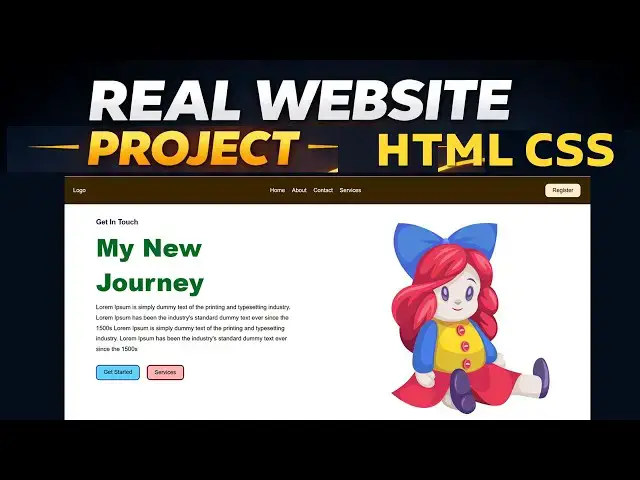
In this video, you will learn how to make a website using HTML and CSS step by step. This tutorial is perfect for beginners who want to build a complete HTML CSS website from scratch with clean and simple code.
We start with the basics of HTML CSS, explaining how to structure a webpage using HTML and style it professionally using CSS. By the end of this video, you will be able to create your own HTML CSS website project, understand layout design, colors, fonts, and responsive structure.
If you are searching for how to make website using HTML and CSS, this video will guide you clearly without confusion. This HTML CSS project is ideal for students, beginners, and anyone who wants to improve their web development skills.
📌 What you’ll learn in this video:
How to make a website using HTML and CSS
HTML CSS basics for beginners
Create a simple and clean HTML CSS website
Step-by-step HTML CSS project
Website layout design using HTML and CSS
This tutorial is beginner-friendly and uses real-world examples, making it easy to understand and apply. Watch till the end to fully understand how to make a website using HTML and CSS.
Show More Show Less View Video Transcript
0:00
Hi friends, welcome to tutors funny channel. Today I'm going to teach how to make this kind of landing page step by
0:07
step. Okay. So here this is very simple page. So I uh I'm going to implement the
0:12
flexbox along with HTML CSS very professional way. Let's start it.
0:20
Uh go to that. I'm going to open up any other any
0:26
my uh D drive.
0:34
Okay, I'm going to open up another D drive. So, D drive. So, here I'm going to start with the
0:41
new project folder. this project folder I'm going to
0:48
open on the VS code editor code space dot to open
0:57
try successfully open the project very simply we have to open the project okay so let's
1:04
start the project index html okay so I'm going to create a style as
1:11
well style dot CSS rather then putting to an
1:17
inside the folder and putting we have to put it like this. So the efficient way to you have to write it you have to give
1:22
the additional folder CSS anything or styles so you have to
1:30
put inside the folder this is the way to do that okay separately you have a if it
1:36
is a CSS file you separate this one folder if it's a images yeah you need a
1:42
separate folder which is images okay these are the things we must to uh include the websites okay so Here hold
1:50
on the shift key and press one key. You can see this mark. So
1:56
if you press sorry all the shift key sorry not here html
2:03
hold on the shift key and press one you can get this mark you can get it over here. You can
2:10
implement the HTML uh uh course automatically generated of VS
2:17
code editor. this this one I no need to explain from the scratch you already
2:22
studied okay so this is not a beginner kind of tutorial I'm going to teach how to uh do the website from the scratch
2:30
okay that's the thing I'm going to teach over here so this is the this is called as the devices this is the languages
2:37
support this is implement for the language support this is HTML this is the for language this is the site is
2:43
made for English if it is a French you can type as a French those that kind of a things we have to implement the
2:49
language first. This is the H5 standards. So those are the things we have to implement it. Okay. So here what
2:54
I'm going to do is inside the body we are going to do something things. Okay. So first what I'm going to do is we have
3:00
to first we have to link this styles first. So we write the link.
3:06
Okay. Link there is a property called relation. Relationship you have to write stylesheet. style
3:15
shade out of that HRF
3:22
okay CSS CSS okay so this is our link this uh CSS file reside on this folder
3:29
CSS folder inside CSS fold we have a file called CSS okay that's it now what I'm going to do
3:36
is I'm going to make this website now I'm going to write it here as you can write it this website first you have to
3:43
check on it how this template you can write this templates okay logo okay so
3:48
here this is the things I'm trying to do it very simple so first what I'm going to do is I'm going to go to the CSS you
3:56
have to implement the body first you have to make it as a margin
4:02
zero padding zero that is must that is the miss after that the box sizing you have
4:10
to write box sizing you have to write this one border box this is must okay
4:17
this is you have to implemented must so after that I'm going to go to that create a class due class so how many
4:24
items are there first you have to identify first one 2 3 so first I'm
4:30
going to go to the main do class you have to make this as container
4:38
open and close the bracket so we have a three dives. So how to write the two div
4:44
three we can implemented three marks. The first one for we have separated these things. First one for logo. So I'm
4:51
going to you have to implement the logo image over here. Okay. After this one
4:56
for the links so you can write class links. You have to enter links the logo
5:03
styling. So you have to implement the class whatever logo style whatever.
5:08
So after that the same thing here one button. So this one should be the register button whatever
5:18
this how we have professionally styled the website. Okay this inside the container we have a three elements
5:25
but those are 1 2 3. Okay. Now how to go a style? So again we
5:33
have to do second one is here is you can write it here four ds write four ds
5:40
first one home about us
5:46
contact service.
5:52
So we have a services. So now let's save all and
5:59
bring back to the application. Check how the how it's reply it's like everything is a on one line.
6:07
So we haven't do anything else. Okay. So the one line. So here also put is one register also register button. So all
6:15
one line you check out it everything is one line.
6:20
No styling and everything. Okay. This is just a home without styling.
6:26
Okay. So I'm going to go to make the style. So first you have to make the style for the content. So you can see
6:34
how the styling work here dot mean a class. Okay. So here we have to write it
6:40
as a we have to write as a flags. You have to implement the flags. That is a very
6:45
professional way. The this is the advanced CSS. Okay. We have to implement the flags. So when you implement the
6:52
flags control S to save bring back to the application and check here somehow
6:57
it will be local one line. So after that we are not going to now I'm going to go
7:05
to that one justify container contain
7:11
space between control S to save bring back to the application check here it is
7:17
coming good now after that after that what I'm going to do is we have to make
7:23
these two things after we set the padding okay top and left can right here uh top
7:33
and uh bottom 20 here outside it has a 100 pixel left and right okay now let's
7:39
check the look and feel of the application here it is 100 is a 20 okay
7:45
that's simple very simple we have a simple website look like this
7:51
okay no need to worry about this very simple okay it's very simple way to
7:56
implement the web page okay it's very easy. Okay, this very easy we have to
8:02
implement the website. Okay. So now what I'm going to do is you can write like this otherwise you can write instead of
8:09
that we can write okay you can write like this way otherwise you can write here margin
8:18
zero at bottom you can put it after you write this one 80% mean
8:26
complete entire web page is 100 80% mean it is aligned like this same
8:34
Okay. So now here also we have write only the set as a padding top only. This also we can find
8:40
30 pixel. Okay it's okay. No problem. That's the
8:47
same but that uh that if you have put the width that is very good. Okay. So
8:53
that's the thing we have to do it right. So this how we have do the websites. Okay. So what I'm going to after that
8:59
this is a container. This is called as a container. It's a called as a container
9:04
of the web page was a container. So now what I'm going to do is we have
9:11
done the thing so far good. Now I'm going to go to do that another thing. So
9:17
I'm going to go to this is I make it as uh uh this one uh container. We have to
9:23
write contain. Okay. You can do this two ways. Okay. 80 just like this way. So
9:28
you can do that way is possible. So I'm going to do this one. You can write it if you have any problem. So you have to
9:34
get rid of over this. You can write it here. Padding
9:40
first one for up and bottom second one for now you can check out here it's working
9:48
perfectly. See as same as it is. So I'm going to make the color if you want to
9:54
make the color as well. So I'm going to write background color
10:01
element as blue foreground color. So color it's a
10:07
foreground color is this color. So let's control S to save. Bring back to the application here. It's working
10:13
successfully. Now I need to from the font
10:20
make it as something this one. Let's check out
10:25
it's working. Okay. So, I'm going to head section that it's
10:34
okay. Now, what I'm going to do is I'm going to do the thing as I'm trying to do to the this all the fine. Uh, okay.
10:44
Now, I'm going to make this one little bit light.
10:50
Okay. Little bit light. And the color I'm going to do this not clear color is
10:55
black. Now let's check on it. The color is must.
11:00
So no no this is not good. So it uh this one color should be white. So that this
11:08
foreground color we have set it as this dark
11:14
yellow. Now let's check on it.
11:20
Now it's something something good. Okay. The colors are very important stuff while you're making the websites. Okay.
11:25
So now and that font family also we outside is a font family.
11:32
Let's put it this one. What happen? It's not good. Okay. It's okay. This
11:40
mono this one we can remove this mono and this one. Let keep this one as
11:47
the entire font is take book family you have to take this when any
11:53
other things. So Jerry see let's check this one
12:00
what's happen
12:10
checkpoint. Okay, this also the something good. This
12:16
font or something good. Okay, this also good something. This font also
12:22
applicable. So next one we can do it 200
12:30
simple. So this how we have make it. So now what I'm what I'm going to do is I want to make the links.
12:37
I'm going to style this links links open and close bracket. The links I'm
12:44
going to is I'm going to style the link. Uh so how to do the links? Display
12:49
flags. Okay, display flags. After what I'm
12:55
going to do is first we have to display flags. You can see here flags. What happen? It goes to
13:02
nothing. Why display flags? So links mean links not link links here it's
13:09
coming okay so here this links I'm going to make the style okay so after that
13:15
here there are no gaps in between that this uh text so how to implement the
13:21
gaps uh gap you have to flex there is a property called gap
13:28
gap you have to write a 20 pixel let's implement the 20 pixel and check ah
13:34
Perfect. It should be perfect. Now it's perfectly It will be aligned.
13:40
It should be perfectly aligned. Okay. So if you want to, if you feel the uh font size is little bit high, so you can size
13:47
it as uh 16 pixel.
13:56
Okay. The 16 pixel more height. So we have right one.
14:01
It's simple. one it's it's I feel it's okay so it's one
14:07
RAM one RAM is nothing but 16 pixel equal into one
14:13
okay very simple so that uh the navigation bar is okay
14:19
now I'm going to make the styling for the button so that registration button I want to
14:25
make the styling for the registration but you get the button make a style register open and close bracket
14:32
You have to make the style for output style. First you have to write the padding.
14:39
You have to write this also the uh we have write
14:45
padding. Let's set it as 20 pixel
14:58
10 pixel. 10 pixel and 20 pixel is this one. This is nothing but the top and
15:03
bottom. It's nothing but left and right. Okay. Bas
15:09
background color should be it should be match with your back. This this is a uh this color. It
15:16
will be match with this color. I'm going to take take this color font crawler.
15:22
I'm going to take it as a black. Okay. After that border radius
15:30
I'm going to take it as uh 10 pixel border radius.
15:38
Okay. So let's check out uh the cursor
15:46
pointer something you have to do it. So now let's check on it. So here
15:53
simple this attractive button. So the color also the match. So I'm going to go to select another important stuff. Align
16:02
item center. Now the all things are here. It's not
16:08
center line. Now it's center. Now that we have perfectly we have done
16:14
the website navigation here. It's perfectly done.
16:20
Okay. This is perfectly done. This how we have make the website very efficient. Okay. This is a very good website we
16:26
made it. So this same website I want what you're going to I want to we can go
16:32
along with this one as well this kind of how to this one I'm I'm not
16:38
doing many styles so just doing so that you have to do this kind of a things so how to do the things very simple this
16:44
dot photo also will be uh copied okay after that I'm going to do this kind of
16:50
a things okay so that's I'm going to do the some attractive way so not like that so I'm going to go to put another one.
16:58
So here do write one
17:06
two class you would set as a hero section something
17:14
the hero section what I'm going to uh what are the things we need we need
17:22
two things we have to separate two things what are the things first two dives we have to separate the two divs.
17:30
Okay, we have two divs. One is for
17:35
is for what? Text.
17:41
Uh this one this uh texting. Okay. So I write hero text.
17:51
This is for hero image. So you can se you can divide it by two
17:58
parts that is easy for you have to uh do it hero image you have put like this
18:04
simple you have put like this now now I'm going to make the styling part so here the hero section go to the
18:11
style going to make it the hero
18:19
flex display flex
18:25
displays We have a in between two
18:31
uh two uh two we need a gap. So we have type gap you have flex there is a
18:37
property called gap you have to implement as 50 pixel or uh 30 pixel
18:43
it's enough. After that we have a margin. We have to set the margin
18:49
40 up and right left and right bottom. We have write like this. This is this is
18:57
known as top and bottom. The left and right margin. Let's set the margin which
19:02
you have to set it as 80 bits. 80 percentage
19:08
color. We have to write the foreground color. Uh okay. So that we have to default this
19:15
column you have to write that's it thing you have it
19:21
okay that thing you have now what I'm going to see I write it
19:27
the thing is do you have to write implement the three dives
19:33
okay first one two
19:38
three press tab key on your keyboard this first one should Okay, let's write it
19:44
over here. Uh
19:49
getting touch
20:01
my new journey
20:06
journey. Here you have to now here we have to put
20:11
the text. Okay, you have to paste it over here.
20:17
The random text it text control to save.
20:25
Okay. So save. So they have a text. So let's uh bring back to the application.
20:32
Not this. So it's right like this. Okay. So after that we need a what happen is
20:39
we have need a this image image also we have to already have put inside this folder we have added the image as well
20:45
image src
20:51
images dot
20:56
width 300 okay let's check on it it's coming look
21:06
Very simple. Okay. Very simple. So done that things perfectly.
21:13
After that we have to make the style info here. Okay. So what I need here is display
21:18
flags. We have to in between the two elements cap. So margin 80 means 80
21:26
percentage this. Okay. this uh all together 100%
21:33
uh in this zero section I make it for only 80 percentage. So get background
21:38
color this one color mean font color that's the thing I have implemented
21:44
simple okay now what I'm going to do is after that I'm going to do the another part
21:52
hero text
21:57
open and close it hero text we have to open and close it uh here we also uh
22:02
display flags
22:10
There also display uh flux direction
22:16
column gap
22:21
10 pixel in between the sentence you have to make it as a uh 10 pixel gap.
22:29
Okay, 10 pixel gap. Okay. So after that the
22:34
width also we have write it here width uh of this
22:40
uh we have to 60 let's what happen
22:48
here the 60 mean it will be aligned like this okay simple 60 or 50
23:00
okay like this this how we are doing it now what I'm going to do I'm doing something
23:06
do the things here as well. So you have to write a styling uh style you can make it here as style.
23:14
Font size you have to make it as 20 pixel.
23:20
Okay. 20 pixel font plate make it as board and
23:29
uh board color
23:34
something blue. Let's check on it for
23:41
second one. The same thing I just copied paste on it over here. journey also we
23:47
can write a color as a blue uh green
23:53
something you have to make this color this text
23:59
okay so this is a text okay this text also the same thing just copy and paste it over here but here uh this one font
24:07
weight we get rid of this the font weight it's black font color it should
24:13
be the same black I don't need this one. After that we need to little bit uh line
24:19
height line height
24:26
five.
24:35
Sorry.
24:42
Uh 14
24:48
is too much. 20
24:55
I need a little bit space between that letters so you can okay it's it it's okay now
25:02
it's okay you have to do the things very efficiently so that will feel little bit the you have to 60
25:11
70 pixel okay okay now it's okay
25:17
now perfectly it will be okay okay got that uh that spacing also. So I I want
25:24
this new journey. I need a big text. So we have to write
25:31
80 too much 80. Okay. So 80 also the 80 70.
25:43
Okay. Okay. I need a text. Okay. New J. So I
25:50
want to this new journey new uh my new uh
25:56
okay so far it should be fine. Now the this image I'm going to make the styling. So I'm going to copy
26:03
make a styling for that. How to make the styling? So you have write display resource the flags
26:13
uh display flags you have write um justify
26:22
content flex send you put flex sand
26:30
fland uh you're height
26:38
with
26:43
60 60%.
26:51
Okay, 60% mean this is 60% you have to write set test here. Okay, the simple
26:56
way. Okay, the very simple way you have to implement this one. So we have writing
27:02
this one also that we have to get rid of the width as well. So if you width here it's coming like this doll is doll width
27:10
is very high. So we have to set it here. So width also we have set it here. Image width also
27:17
uh 400 pixel is
27:26
nice uh landing page here. It says nice landing page. You can see it's a nice
27:32
landing p this kind of a pretty simple way we have to implement. Okay. So if you want to rather than you have to
27:38
simply I need somewhat uh big so right now it's simple. So this
27:45
now I need a two buttons that is very best you need two buttons. So the button
27:52
what you're going to again I'm going to go to this one the font weight also I want to
27:58
without the okay now it's okay
28:04
it's okay the color also not I don't like this color blue
28:14
now let's check on this color is beautiful okay this is not color for me.
28:29
Okay, let's check on it. And now it's a flex
28:35
is not clear. That's a why that's a problem. Uh 8
28:44
700. So far, perfect. Okay. Now this how we
28:50
have do the styling part. Now I need a two buttons. So here so that I'm going to copy the
28:58
two top right button class button btn group.
29:15
Okay. So try and group. So you have to write two
29:21
two here register
29:29
write another one service there are two bar service
29:36
get started get start so we make the style for the group copy
29:43
this coming here make it here as a open group.
29:53
Open and close by here. Write it over here. Flax
29:59
the dis uh flex display flex. Okay. The B move flags gap
30:10
10 pixel. Okay. So 10 pixel. So you have to the
30:16
first one button first one for class
30:22
btn1 second for btn2
30:29
this style no problem dot btn one
30:37
bn2 only the thing is the same uh button the register button you just copy this
30:43
don't need anything else paste on it here also paste it only the thing is we have to do it you have to change the
30:49
color as color this one you have go along with that dark
30:55
uh blue text color in your set is white
31:01
this one you go along with dark red text color go along with
31:10
okay all things you just save all Going back to the application check.
31:15
It's it's coming here. It's it's doing but it's not applied here. Why is not
31:21
for BDN 2.
31:27
Now it's okay. So I hope you can understand this. If you have any problem with this you
31:34
can write over here as flax direction also. Uh
31:39
uh flex justify content
31:46
right
31:52
here the right it's aligned the right so you have to make the space
31:58
spacing uh then write
32:04
margin top 20 pixel
32:12
Okay. So this is not uh actually not good. So make it as right. You can
32:18
remove it. And uh gap you have to 20 pixel. It's enough.
32:25
Now it's okay. Okay. Now it's okay. So that uh again I
32:32
feel this too much. The button is not good actually. But uh I don't have a I'm feeling little bit boring color. Color
32:40
should be boring. So that we have make it as a sign color.
32:49
This one should be black.
32:56
Okay. Now it's okay. Now it should be nice.
33:03
It should be nice. Okay. So this how we have make the the font weight also we
33:09
can write it as a bold. Now it should be good uh bold also that
33:17
not actually good uh bold if you make it if you implement it as a board.
33:28
So uh
33:34
400 after that what I'm going to do is I'm
33:39
going to go to that uh uh styling
33:46
to go to that implement that border one pixel solid. Okay. So we have to two
33:53
pixel implemented. Okay, let's
33:59
here it's a solid background. Okay, so we have to write like this as well. This is very good to implement. So that uh
34:07
solid background. So we have to make it this one as a this color according this color we have set it as a dark one. That
34:14
was good. The same thing implemented here as well.
34:21
This also light one also dark
34:29
background. This color should be black.
34:34
Let's control S to save and bring back to the application. Check here it's working
34:40
something like that. So the color should be the foreground should be not a good thing.
34:47
black it's go along with the black it's let's look at that black now something good
34:54
so here also that uh that background we have to check on it that uh this look
35:03
okay now it should be fine again you have to write it here as a
35:11
t
35:16
it should file. Okay, thank you for watching.
#Jobs & Education