This tutorial will teach you how to make a Radio button in python tkinter step by step
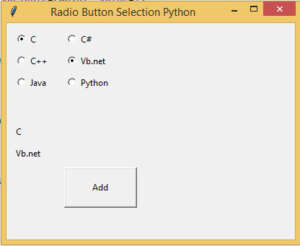
from tkinter import *
from tkinter import ttk

def selection():
    selection =   radio.get()
    selection1 =  radio1.get()

    if(selection==1):
        item = "C"
    elif(selection == 2):
        item = "C++"
    elif (selection == 3):
        item = "Java"
    if (selection1 == 1):
        item1 = "C#"
    elif (selection1 == 2):
        item1 = "Vb.net"
    elif (selection1 == 3):
        item1 = "Python"

    label.config(text=item)
    label1.config(text=item1)

top = Tk()
top.geometry("400x300")
top.title("Radio Button Selection Python")

radio = IntVar()
radio1 = IntVar()


R1 = Radiobutton(top, text="C", variable=radio, value=1)
R1.pack(anchor=W)
R1.place(x=10,y=10)

R2 = Radiobutton(top, text="C++", variable=radio, value=2)
R2.pack(anchor=W)
R2.place(x=10,y=40)

R3 = Radiobutton(top, text="Java", variable=radio, value=3)
R3.pack(anchor=W)
R3.place(x=10,y=70)


R4 = Radiobutton(top, text="C#", variable=radio1, value=1)
R4.pack(anchor=W)
R4.place(x=80,y=10)

R2 = Radiobutton(top, text="Vb.net", variable=radio1, value=2)
R2.pack(anchor=W)
R2.place(x=80,y=40)

R3 = Radiobutton(top, text="Python", variable=radio1, value=3)
R3.pack(anchor=W)
R3.place(x=80,y=70)

Button(top, text="Add",command = selection,height=3, width= 13).place(x=80, y=200)

label = Label(top)
label.pack()
label.place(x=10,y=140)

label1 = Label(top)
label1.pack()
label1.place(x=10,y=170)

top.mainloop()
i have attached the video link below. which will do this tutorials step by step.